Connect to the gateway over LAN (Snape 1.0)
Connect your computer to the gateway
Before starting the configuration, please make sure the computer is properly connected to the LAN as shown in the image below.
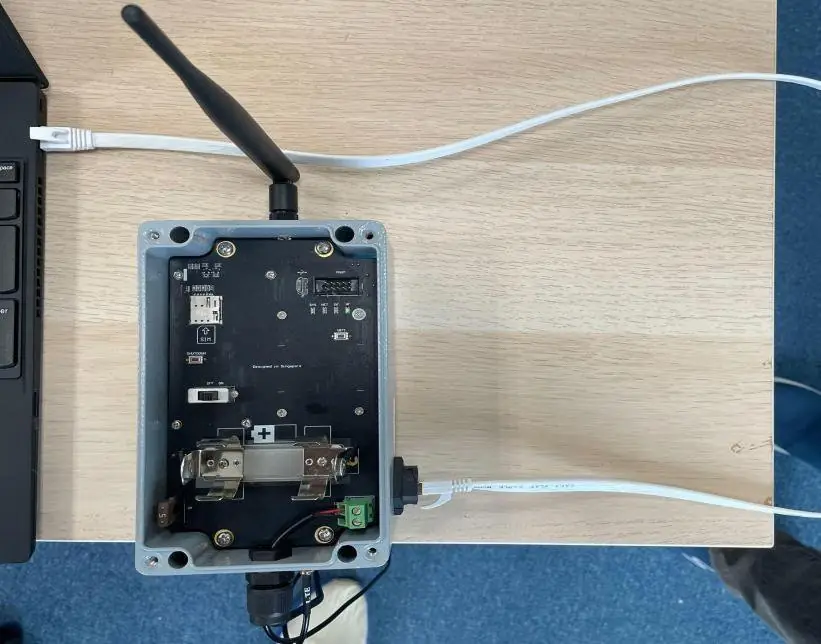
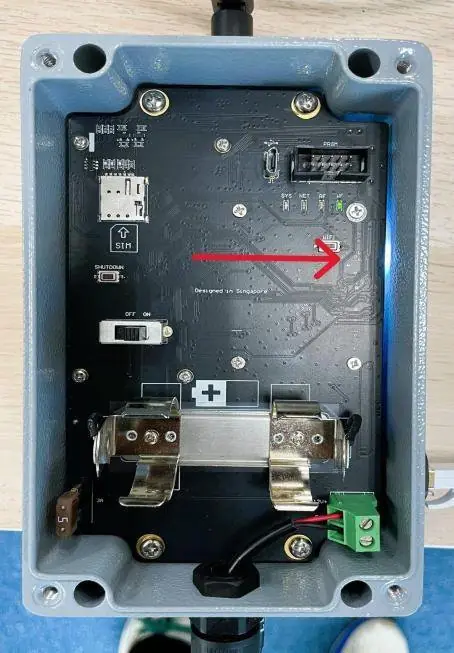
A bright light will bleed from the side of the PCB board, indicating that the wires are properly connected, as shown in the picture below.
Open the Settings on your computer
1. Click on the Start menu.
2. Select Settings.
Navigate to Network Settings
3. In the Settings window, click on Network & Internet and select Ethernet.
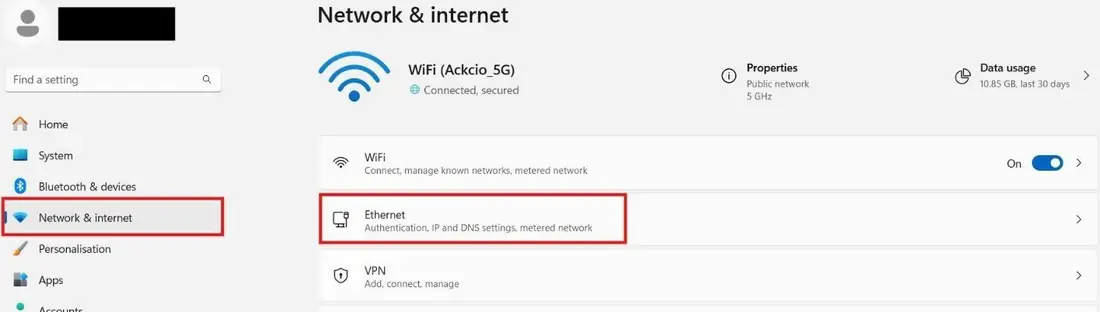
4. Under Ethernet, scroll down to IP settings.
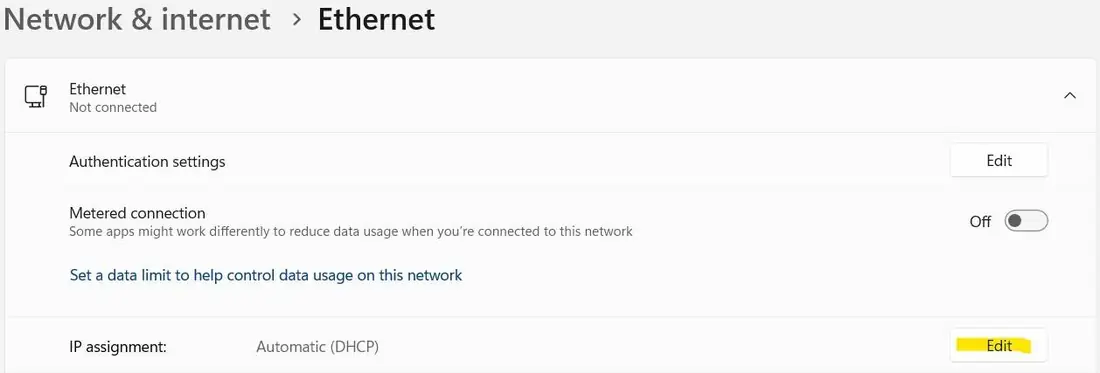
5. In the Edit IP settings window, from the drop-down menu, select Manual and toggle the IPv4 switch to On.
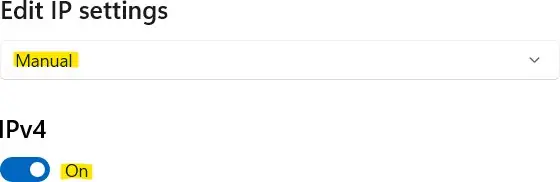
6. Fill in the following fields with the provided parameters:
| Setting | Value |
|---|---|
| IP address | 192.168.10.2 |
| Subnet mask | 255.255.255.0 |
| Gateway | 192.168.10.1 |
| Preferred DNS | 1.1.1.1 |
7. Click on Save once all the details are entered.
Open the Snape dashboard
8. Launch Chrome, Edge, or your preferred web browser.
9. In the address bar, type: http://192.168.10.1
10. You should be redirected to the Ackcio Snape Login Page.