Connect to the gateway over its Wi-Fi (Snape 1.0)
Gateway Connection
This section will explain connecting to the Wi-Fi network created by your gateway, then we will move into the settings changes necessary to get your gateway up and running.
Connecting to your gateway over Gateway’s Wi-Fi Network
Your Ackcio BEAM-GW Gateway generates its own Wi-Fi network. Users can connect to this network to access the gateway dashboard and update the settings on their gateway to accommodate the unique conditions of each deployment. To access your gateway’s Wi-Fi network, follow the steps below.
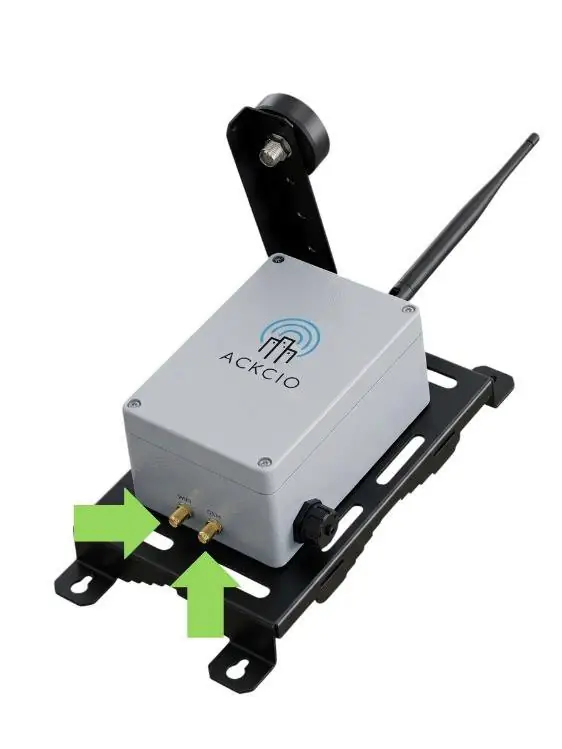
1. Turn your gateway on by moving the ON/OFF switch to the ON position. Please ensure the black cylindrical antenna is connected to the bottom of GW correctly according to its port: GSM & WIFI. The cables are labelled to provide reference too.
2. Once you have turned your gateway on, the RF (Radio Signal) LED will begin to blink. After about one to two minutes, the WF (Wi-Fi) light will turn solid, indicating that the gateway’s Wi-Fi network is available.
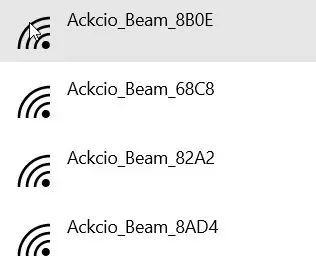
3. On your desktop or laptop, search for available Wi-Fi networks and connect to the “Ackcio_Beam_XXXX'' network using the password [hidden on the public site]. The last four digits of the Wi-Fi network name will be your Gateway’s device ID.
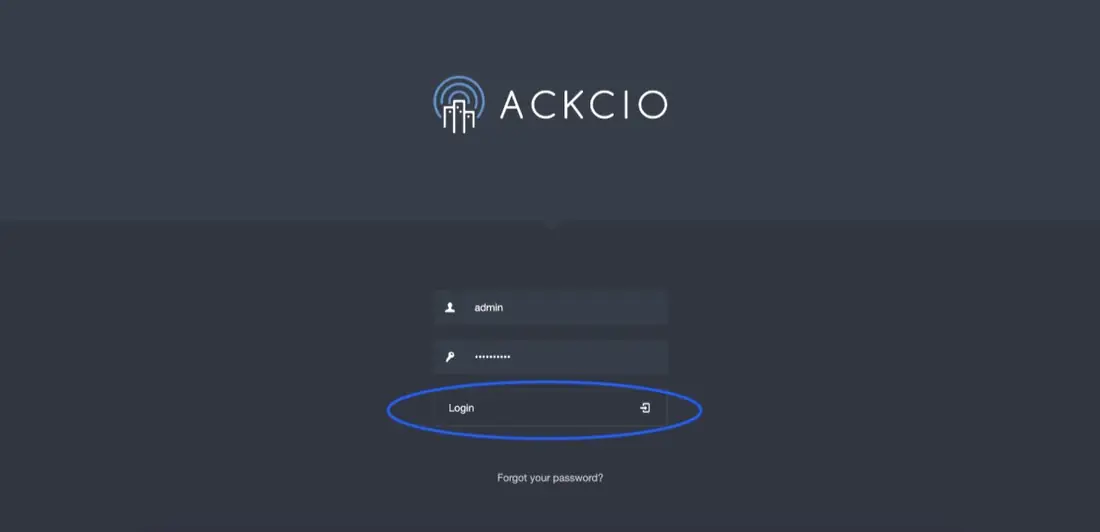
4. In the browser of your choosing (Chrome, Firefox, Safari, Edge, etc.) type http://192.168.0.10 into your URL bar and click enter to navigate to the login page of your gateway’s dashboard. Enter the following username and password.
- Username: admin
- Password: [hidden on the public site]