Change the gateway login (Snape 1.0)
You may wish to change the login credentials for your gateway dashboard for added security. To change these credentials for your gateway dashboard, you will first need to export a gateway diagnostic report (see Gateway health, activity & logs).
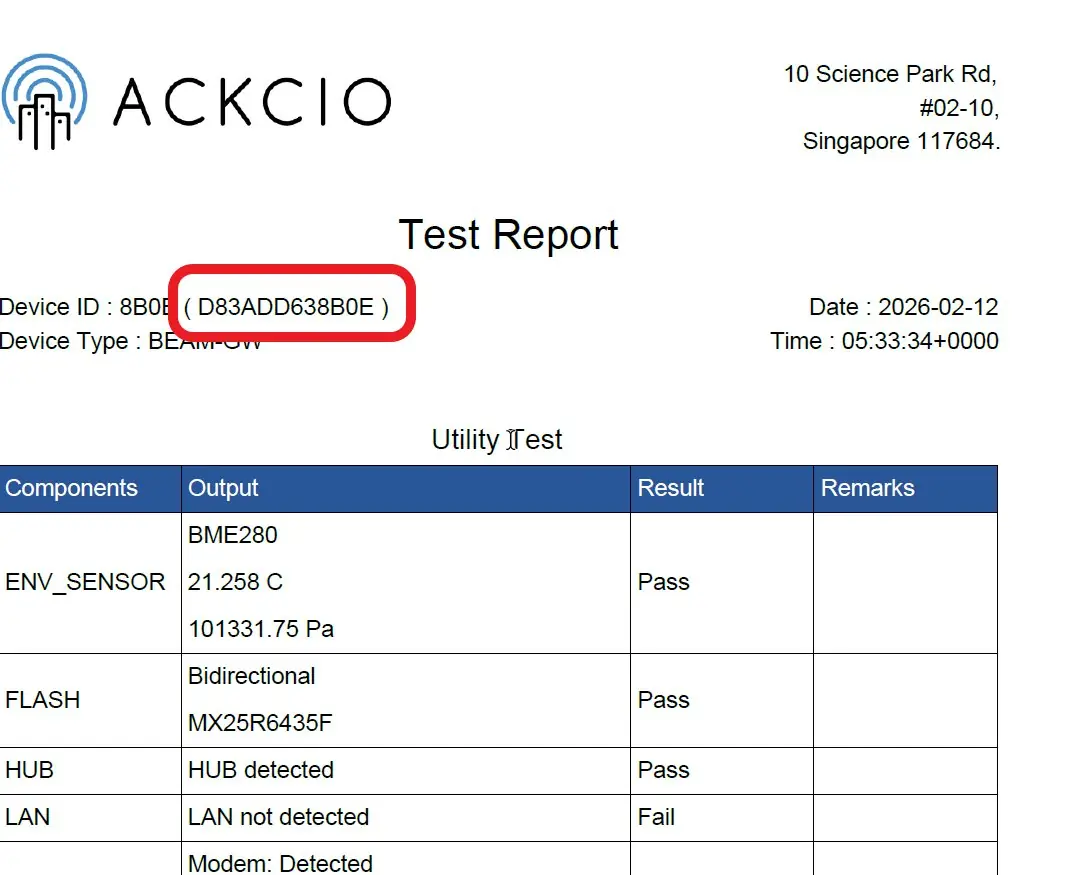
1. Once you’ve got your diagnostic report, look in the upper left portion of the sheet for “Device ID”. There, you will see the four-digit device ID of your gateway. Besides that, you will see 12 digits in brackets. This will be the “secret key” used to change your login credentials.
2. Return to the login page of the gateway dashboard by clicking the Logout icon in the top left of your screen.

3. Click on the “Forgot Your Password” link under the login button.
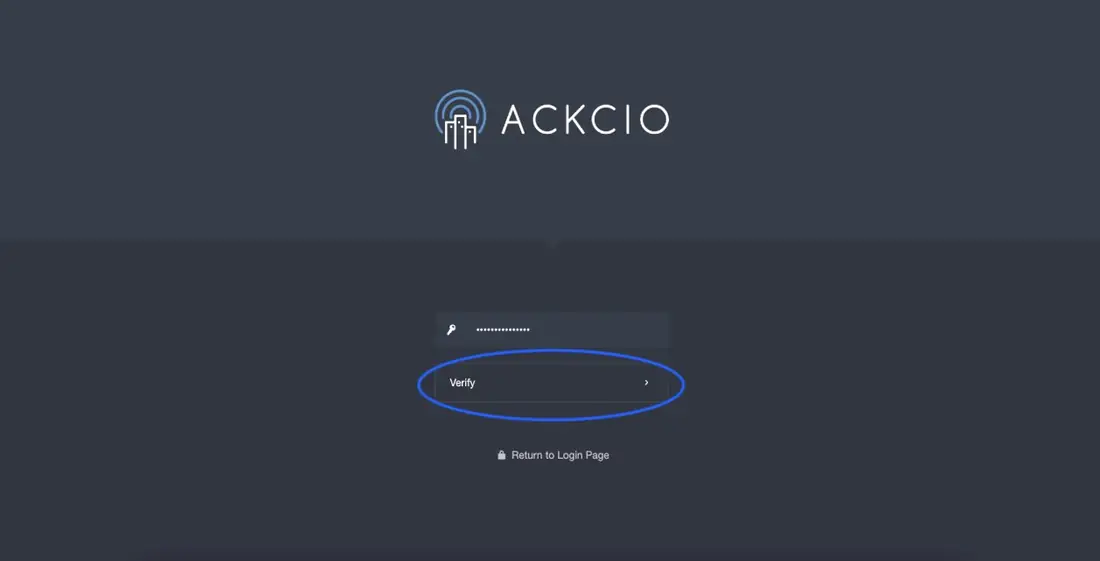
4. Enter the Secret Key from your gateway’s diagnostic report in the Secret Key field, and press “Verify”.
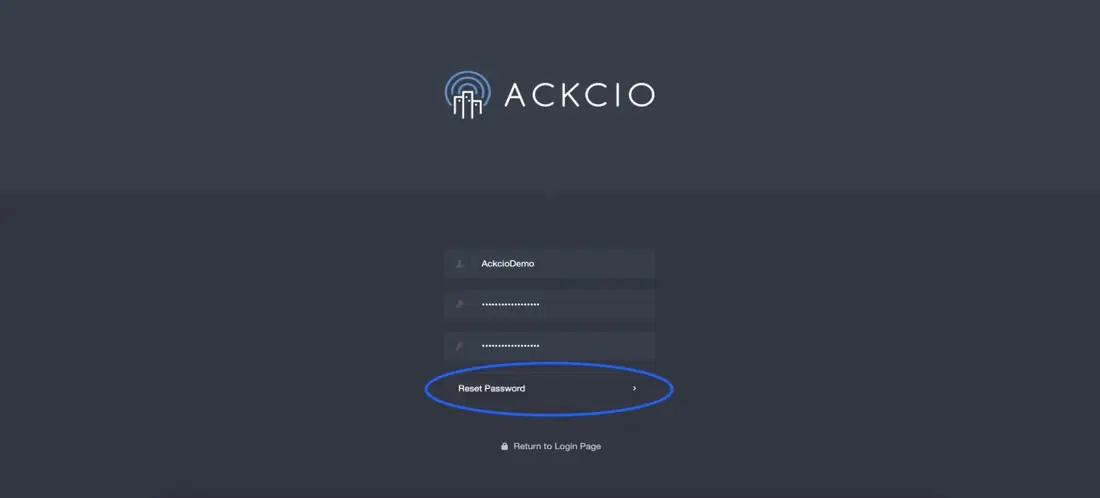
5. On the next page, you will be able to enter in your desired new credentials. Choose your username (you can only choose profiles between admin, client or guest; you won’t be able to enter in your preferred username) and password (you can enter your desired password), then confirm your password, and select “Reset Your Password”.
6. Log in to your gateway dashboard with your updated credentials.