Update node firmware with your Android phone
Updating your Node’s firmware with your Android device
Our engineering team is constantly improving our firmware by adding new features and optimizations. We would thus recommend updating your Nodes with the latest firmware when convenient. To do so, please follow the steps below:
1Downloading Node firmware onto your Android device
1. Connect your Android device to the Internet. FW will be auto downloaded as long as mobile has Internet otherwise you can go to ABOUT and click on CHECK UPDATES
2Updating your Nodes with your Android device
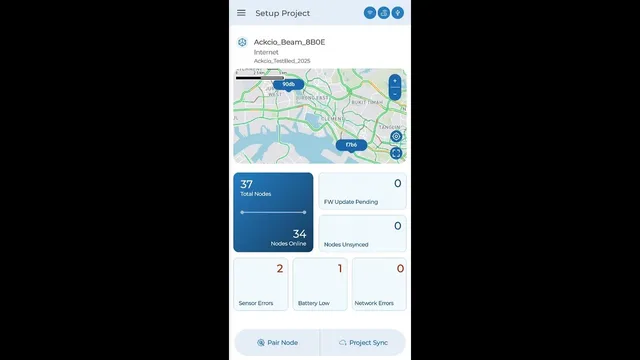
1. On the Pair Node page, tap the FW Version option. You will then enter the Firmware Update page.
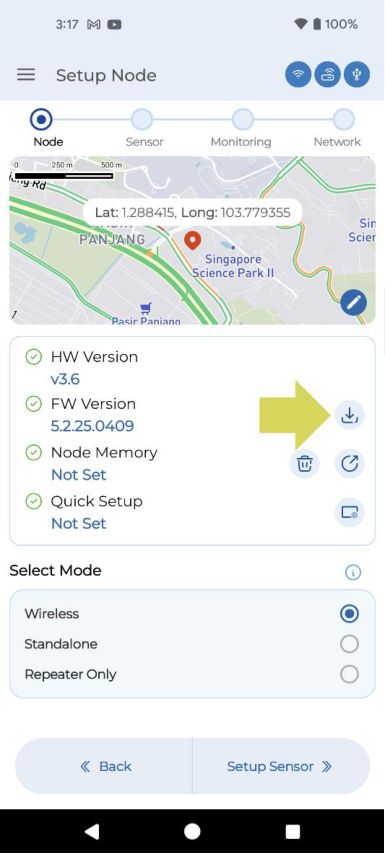
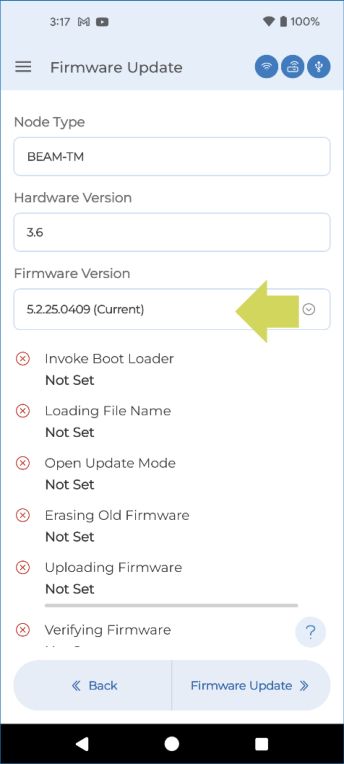
2. Tap on the FW Version bar and select CURRENT from the dropdown menu.
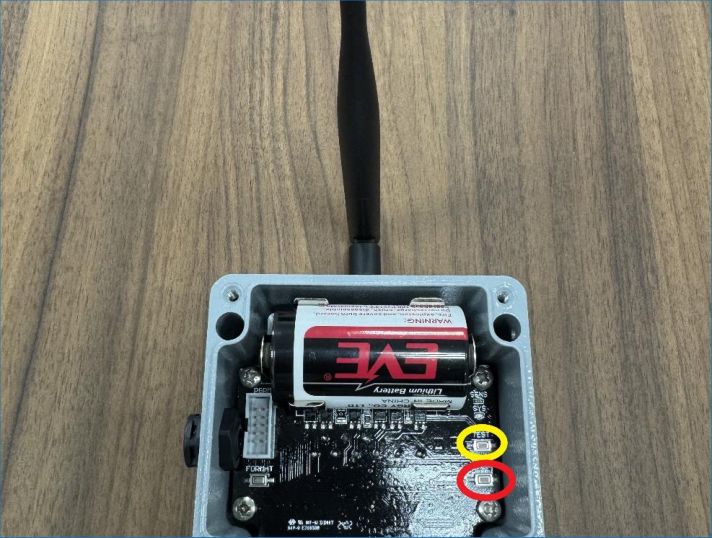
3. Hold down the Node's Test button, and then RESET and take your fingers off RESET and then TEST. This will put the Node into Update mode. At this point, you will see all LEDs on the Node stop blinking.
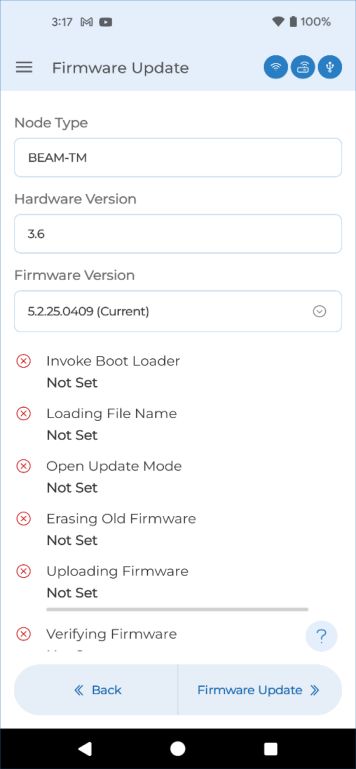
4. Within 10 seconds of the previous step, tap the Firmware Update button. You will see the update process begin, indicated by the steps being ticked off.
NoticeIf you see an error message asking you to put your Node in update mode, please repeat step 3 of the update process.
Still stuck in update mode? Watch: Force firmware update ↗
5. Once the update process has been completed, you will then see a notification reading "FW Update Successfully completed". Closing the notification will then bring you back to the Setup Project page.
3Confirming the successful update of your Node firmware
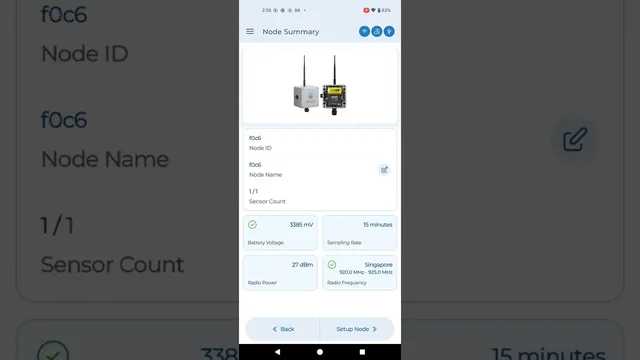
1. Press the Reset button on the Node. This will put the Node into Pairing mode.
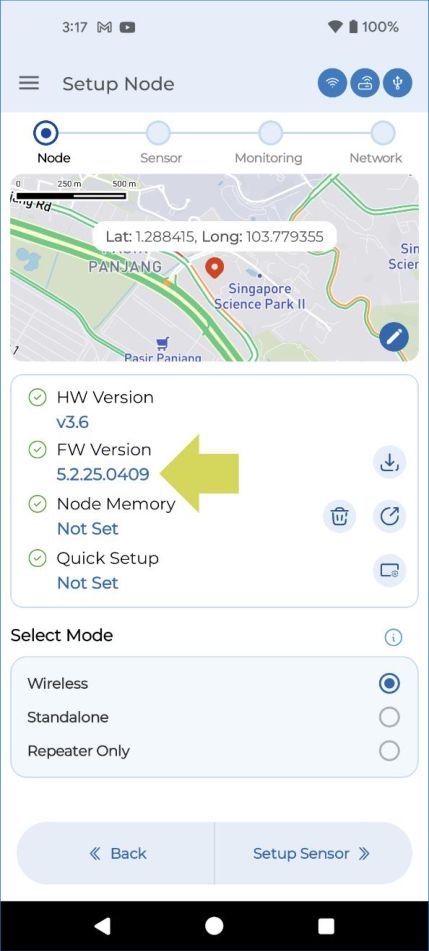
2. Within 10 seconds of the previous step, tap the Pair Node button. Upon successful pairing with the Node, you will enter the Node Setup page. On the Node setup page, you will be able to observe if the Node Version number has changed.