Download your project configuration
Downloading your project’s configuration
Once you have prepared your Ackcio Nimbus application, you will then need to download your Project settings from the Gateway. Your Android device can then be used to apply these Project settings to your Nodes. This is important as the Project settings provide your Nodes with the Gateway’s radio key:
1. Connect your Android device to your Gateway’s Wi-Fi hotspot using HTTP or you can also use the remote.it link provided GW and android device has internet using HTTPS.
2. Open the Ackcio Nimbus application on your Android device, and tap Wireless (with GW) or Standalone (without GW). This will then connect you to GW.
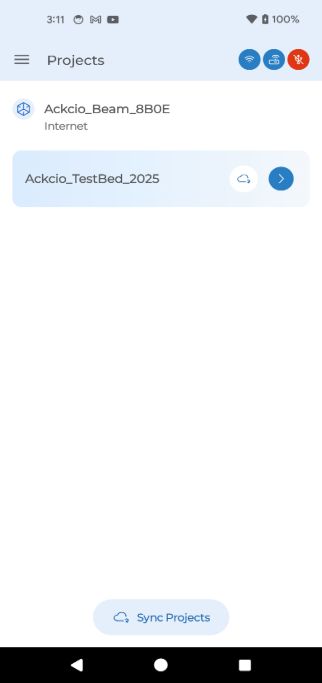
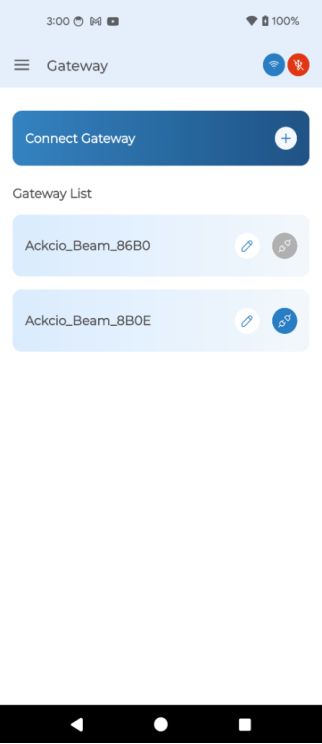
3. On the Gateway page, tap Connect Gateway and choose the method you would want to connect to Gateway either via hotspot or remote.it link to download project created on Snape and its information onto your Android device. Should your created project fail to appear, ensure your mobile phone is connected to GW Wifi Hotspot or internet and retry.
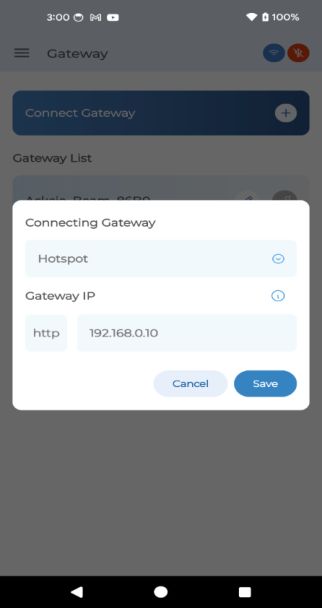
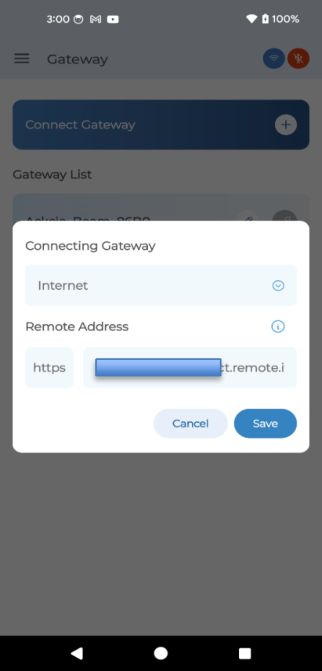
4.Choose either hotspot (192.168.0.10) or Internet (remote.it link) and click arrow next to your project name and the project will be loaded on your android device, your Android device will no longer need to be connected to your Gateway's Wi-Fi network anymore. You need to be connected again only to SYNC upon commissioning of all nodes at site. That too sync happens automatically if the android device stays connected to GW Wifi Hotspot or via remote.it link over Internet.