Email alerts, part A: SMTP set-up
Before any alert can be created, Grafana needs a working email account to send from. This is configured once per Grafana instance under SMTP Configuration, found in the left-hand menu under More apps → SMTP CONFIGURATION. The example below uses a Gmail account, but any SMTP-compatible provider (e.g. Office 365, SendGrid) can be used in the same way.
STEP 4 Open SMTP Configuration
In the left-hand menu, expand More apps → then click SMTP Configuration.
Fig 3.1: Navigating to SMTP Configuration under More apps → SMTP Configuration.
STEP 5 Enter the SMTP connection and sender details
Fill in the SMTP Configuration form as follows:
| Field | Description |
| Host | The SMTP server hostname for your email provider (e.g. smtp.gmail.com for Gmail). |
| Port | The SMTP port: typically 587 or 465, depending on your |
| provider's requirements. | |
| Username | The full email address of the sending account (e.g. yourname@gmail.com). |
| Password | The app password for the sending account, see Step 6 below for |
| how to generate this. | |
| From address | The email address alerts will appear to be sent from. Must be an address your provider permits you to send as. |
| From name | The display name recipients will see next to the sender address |
| (e.g. "Grafana Alerts"). |
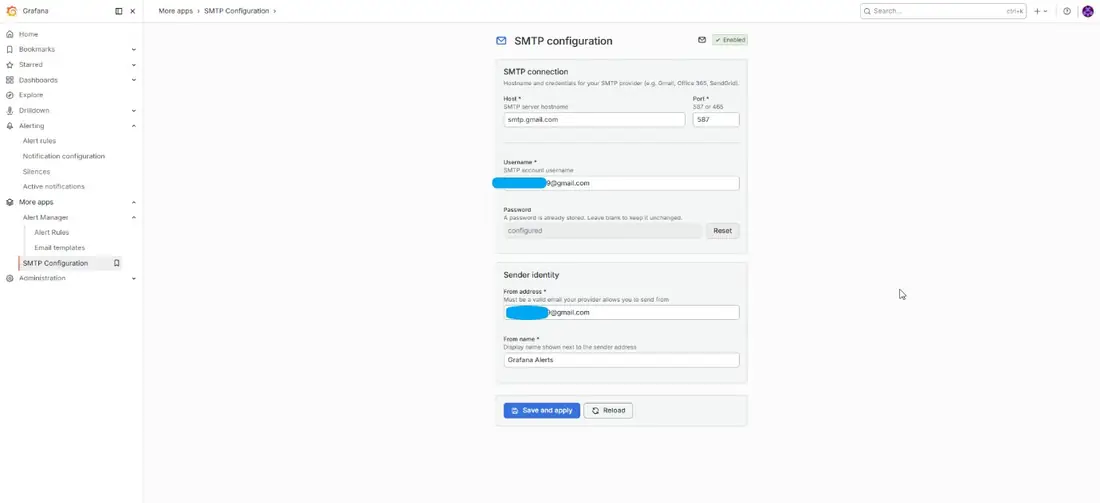
Fig 3.2: SMTP configuration form with connection details and sender identity fields.
NOTE: For client deployments using a personal Gmail account, consider whether a shared or dedicated mailbox would be more appropriate long-term, since the alert sender is tied to that individual account.
STEP 6 Generate a Gmail app password
Gmail does not accept your normal account password for third-party apps like Grafana. Instead, you must generate a dedicated app password:
Visit myaccount.google.com/apppasswords while signed in to the Gmail account that will send the alerts.
STEP 7 Create the app password
On the App passwords page, type a name to identify this password (e.g. "Grafana"), then click Create.
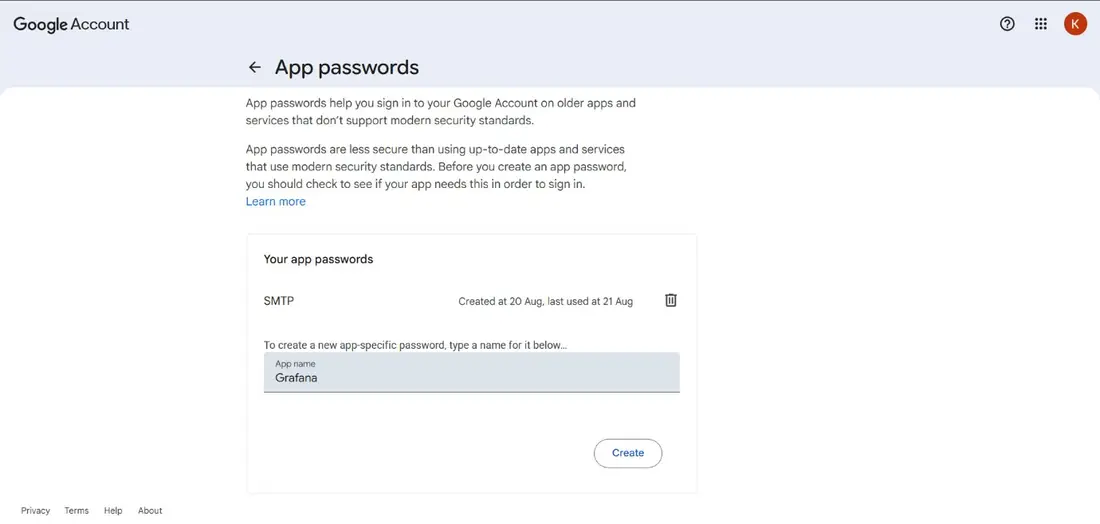
Fig 3.3: Creating a new app password named "Grafana" in the Google Account settings.
Google will generate a 16-character password. Copy it: this is what gets pasted into Grafana's Password field, not your normal Gmail login password.
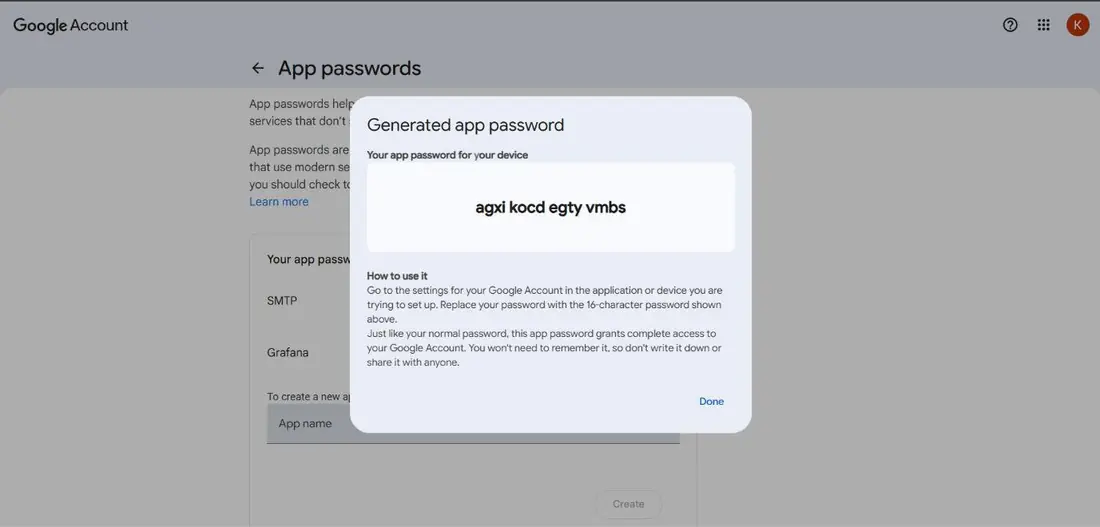
Fig 3.4: The generated app password, ready to copy.
STEP 8 Paste the app password into Grafana
Return to the SMTP Configuration screen in Grafana and paste the app password into the Password field. Click Save and apply to activate the configuration.
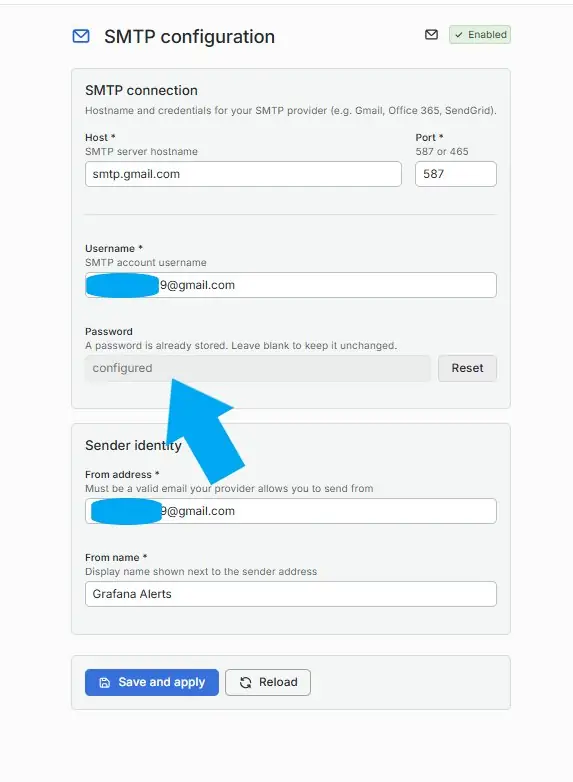
Fig 3.5: Pasting the generated app password into Grafana's SMTP Configuration.