Export data from your gateway
Exporting of data from your Gateway
If you would like to directly export the data stored on your Gateway, you can do so from the Gateway dashboard. You can export data on a Gateway, Node or Sensor level, while specifying the period for which you would like to export data:
| Option | Exports | You receive |
|---|---|---|
| 1 · Gateway level | All nodes on the Gateway | .zip file |
| 2 · Node level | One node and its sensors | .zip file |
| 3 · Sensor level | One sensor | CSV file |
Before you start
1. Connect to your Gateway's Wi-Fi network or remote it link.
2. Open any web browser on your computer, visit http://192.168.0.10/ and login if its GW Wifi hotspot
Option 1Gateway level
1. On the Nodes panel, click on the Export All Nodes Data icon.
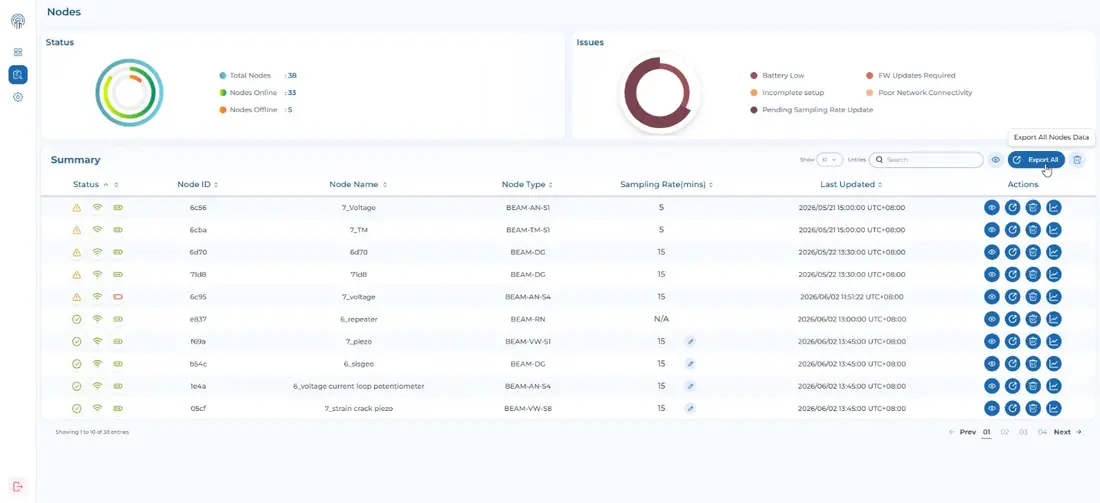
2. Select the period for which you would like to export data and click the Export button. You can choose to export all or define by number of weeks.
Option 2Node level
1. To export a specific Node’s data, click on the Nodes panel.
2. On the Node Summary panel, click on the Export Node Data icon next to your Node’s name/ID.

3. Select the period for which you would like to export data and click the Export button.
4. You will receive a .zip file containing the data for your Node.
Option 3Sensor level
1. To export a specific sensor’s data, click on the Nodes panel and click on individual Node ID and click “View Node”
2. On the Sensor Summary panel, click on the Export icon next to your sensor’s name.
3. Select the period for which you would like to export data and click the Export button.
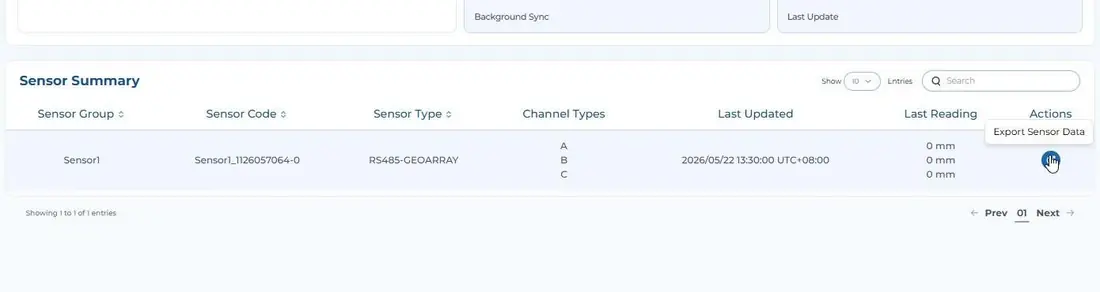
4. You will receive a CSV file containing the data for your sensor.